Ribbon Tool
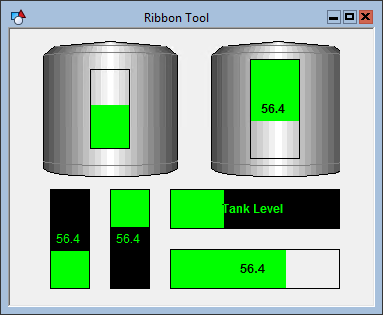
 A Ribbon Tool object is a status bar for which the fill level corresponds to a given range. The range is defined by the [RangeLow] and [RangeHigh] properties of the object. The fill level is set by the [Value] property. In Edit mode, you can assign a default value to this property. If the object is associated with a point, the default value is replaced in Run mode by the actual value of the point.
To associate the object with a point use the point identifier properties to form a fully qualified CygNet tag string. The point identifier properties are [1:SiteService], [2:Point ID], [3:Long Point ID], [4:Facility ID], and [5:UDC]. If the object is on a templated screen, only use the [5:UDC] property.
A Ribbon object can be stand-alone or placed on top of another object. The aspect ratio of the object’s boundary determines its fill direction. If the object’s height is greater than its width, the fill is vertical. If its width is great than its height, the fill is horizontal. The fill direction (top-bottom, bottom-top, left-right, right-left) can be changed by dragging one boundary end over the other.
The BackColor property specifies the color of the empty portion of the ribbon. The ForeColor property specifies the filled portion of the ribbon.
If the ShowExtra property is set to Yes, the point attribute specified by the [DisplayItem] property is shown in the ribbon.
Note that the [DisplayItem] property always only refers to text display, and the [ValueItem] property always only refers to graphical display, and these two properties do not affect each other. It is not possible to set the [ValueItem] property to "AlternateValue"; the use of alternate units with the [ValueItem] property depends on whether the View is using alternate units.
The [AlarmElement] property can be set to show the point state color in the object’s Background Color, the Foreground Color, or not at all (None). When set to None, the color specified for each component is shown. If set to one of the other options, the component color is replaced with the point state color.
The [UseCustomStateColors] property enables the object to use its own custom point state colors. If set to 1 - Yes, the colors used are those defined by the object’s [CustomStateColors] property. If set to 0 - No, the colors are those defined by the TheView’s [CustomStateColors] property.
More:
 Ribbon Tool - Properties, Events, and Methods

